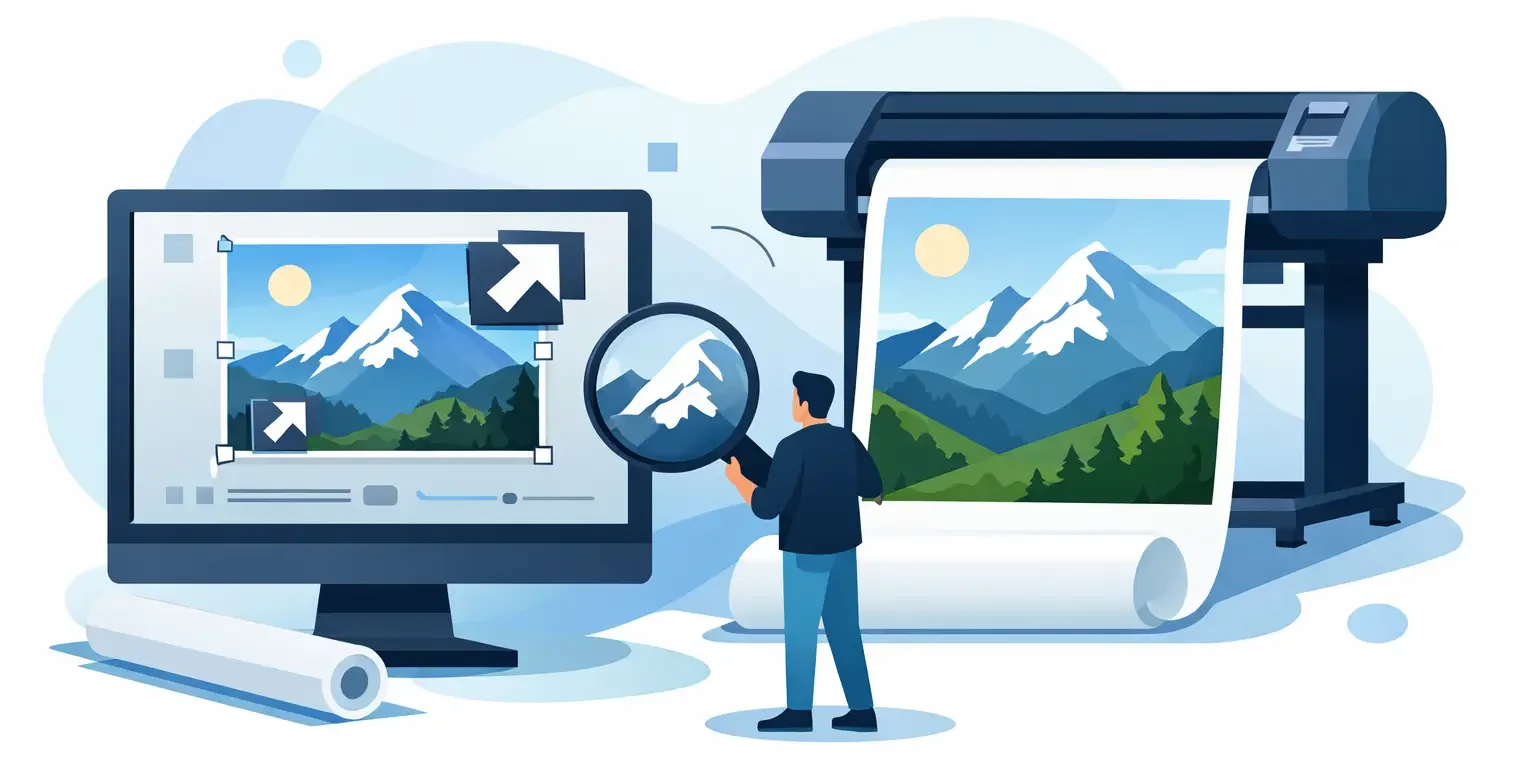
A pull-up banner that looks sharp on screen can turn soft, pixelated or oddly cropped once it reaches full size. That usually comes down to one thing: the artwork was not set up at the right size and resolution from the start. If you are working out how to resize images for large format printing, the key is not simply making the file bigger. It is making sure the image has enough real detail for the final viewing distance, material and print method.
For businesses ordering signage, exhibition graphics, window vinyls or wall displays, this matters more than most people expect. A file that looks acceptable in a small proof can fail badly across a two-metre panel. Getting the setup right early saves rework, delays and unnecessary cost.
How to resize images for large format printing properly
The first step is to work from the final print size, not the size of the original image. If your artwork is going onto a 2000 mm x 1000 mm banner, those are the dimensions that should guide the file setup. From there, you can decide what resolution is actually needed.
This is where many jobs go wrong. People often assume every print file must be 300 dpi at full size. That is fine for brochures and close-viewed print, but it is not always necessary for large format. A wall graphic viewed from a few metres away does not need the same pixel density as a leaflet held in the hand. In many cases, 100 to 150 dpi at final size is more than suitable for large display graphics, while some long-distance signage can work well at lower resolutions.
The trade-off is simple. Higher resolution means larger files and slower handling, but lower resolution can mean visible softness if the graphic is viewed up close. It depends on where the print will be installed and how people will see it.
Start with final size and viewing distance
Before resizing anything, confirm three points: the finished dimensions, the intended viewing distance and the print product. A shop fascia, exhibition backwall and construction hoarding may all count as large format print, but they do not need identical file settings.
If the graphic will be read at close range, such as a retail POS panel or indoor display board, use a higher effective resolution. If it will be viewed from several metres away, such as external signage or high-level branding, you can often work at a lower one without affecting the result.
As a practical guide, 150 dpi at final size is a safe working standard for many business print applications. For very close-viewed graphics, 200 dpi can be worthwhile. For larger exterior signage, 72 to 100 dpi may be perfectly acceptable. If you are resizing a supplied image and it cannot reach those figures, that does not always mean the job is impossible, but it does mean expectations need to be checked before print.
Check the image’s real resolution
What matters is the effective resolution at the final printed size. An image might be 300 dpi at A4, but if you stretch it to fit a large banner, that dpi drops sharply. The file has not gained detail – it has only spread the existing pixels over a larger area.
For example, an image that is 3000 x 2000 pixels could print reasonably at around 500 x 338 mm at 150 dpi. Scale that same image to 1000 x 676 mm and the effective resolution drops to 75 dpi. That may still work for some uses, but not for all.
This is why simply typing in larger dimensions inside design software is not a reliable fix. Upscaling can increase the pixel count artificially, but it does not recreate genuine image detail. Some modern software does a better job than older methods, particularly with photographic content, yet it is still a compromise rather than a substitute for a properly sized original file.
Resizing images without damaging quality
If you need to resize an image for large format print, begin with the highest quality original available. That could be the native camera image, exported artwork from the designer, or a vector logo rather than a web download. Avoid copying images from websites or social media where files are already compressed and reduced.
In image editing software, keep proportions locked so the image does not distort. Set the target dimensions based on the finished print size or on a proportional scale used by your printer, such as 10% size. Large format artwork is often supplied at reduced scale to keep files manageable, but the resolution must be increased proportionally. A file built at 10% scale should generally use ten times the intended resolution figure.
If you are enlarging a raster image, use resampling carefully. A modest increase may be acceptable. A dramatic jump usually exposes limitations. Sharpening can help slightly, but over-sharpening often creates harsh edges and visible artefacts once printed.
Raster vs vector – know the difference
One of the most useful distinctions in large format artwork is whether an element is raster or vector. Photographs are raster, made of pixels. Logos, icons, linework and text are often best supplied as vector artwork, which can scale up without losing clarity.
If your graphic includes a company logo, avoid embedding a low-resolution JPEG pulled from an email signature or website. A proper vector file such as an AI, EPS or press-ready PDF will give far better results, especially on signs, boards and exhibition graphics where clean edges matter.
This matters commercially as well as visually. A blurred logo on a reception wall, vehicle graphic or site board can make an otherwise well-produced job look rushed. It is worth sourcing the correct asset before the artwork goes to print.
File setup points that affect print quality
Resizing is only one part of the preparation. The file also needs to be built correctly for production. That means checking bleed, crop area, colour mode and safe margins as well as image size.
Bleed is important when graphics are trimmed after print. Without it, you risk white edges. Safe margins matter when text or key branding sits too close to the edge. Colour mode also needs attention. Large format printers can work to wide colour gamuts, but if artwork is built in RGB and converted poorly at the last stage, colours may shift more than expected. Brand-critical projects should always be checked carefully, particularly for retail, corporate interiors and campaign graphics.
Fonts should be embedded or outlined if the artwork is being supplied as a print-ready PDF. Linked images should remain high resolution and not be accidentally downsampled during export.
Common mistakes when resizing for large print
The most common issue is assuming that bigger dimensions automatically mean a printable file. They do not. A larger file can still be low quality if the original image data is weak.
Another regular problem is judging quality at 100% on screen without considering final viewing distance. Large format print is not assessed the same way as a brochure proof. A banner may look slightly soft close up on a monitor but appear perfectly right when installed in its intended location.
There is also the opposite mistake: approving a file because it looks fine as a thumbnail. Small previews hide problems. Pixelation, compression artefacts and rough cut-outs become much more obvious at scale.
Finally, many businesses send over mixed assets from different sources – some from old marketing folders, some from websites, some from mobile phones. That patchwork approach often leads to inconsistent print quality across one campaign. For multi-site branding or repeat rollouts, asset control matters.
When to ask your printer before resizing the artwork
If the job includes large wall coverings, tension fabric displays, outdoor banners, hoarding panels, window graphics or site signage, it is sensible to confirm the artwork specification before anyone starts rebuilding files. Different substrates and print processes can influence the ideal setup.
A practical production partner will usually advise on scale, resolution and file format based on the actual product, rather than giving one blanket rule. That is often the most efficient route for marketing teams and procurement teams handling time-sensitive work across several items.
At SignsDisplay.com, this is typically where early artwork checks save clients the most time – especially when one campaign needs to work across boards, banners, interior branding and display materials together.
A straightforward workflow for better results
In practice, the safest workflow is to confirm the finished dimensions first, check how close the graphic will be viewed, source the best original files available and then build the artwork to a realistic resolution for that application. Use vector assets wherever possible, be cautious about enlarging raster images too far and export in a print-ready format with bleed and margins accounted for.
If any part of the artwork looks marginal, check it before production rather than hoping the printer can correct it later. Some issues can be improved in pre-press, but many cannot be fixed without compromising quality or delaying the job.
Well-prepared artwork does more than avoid pixelation. It helps keep colours consistent, logos crisp, installation straightforward and approvals quicker. When the print is going into a customer-facing environment, that extra care shows.
If you are ever unsure whether an image is large enough, treat that as a production question rather than a design guess. A quick check before print is usually faster than replacing a full-size graphic after it has gone up.