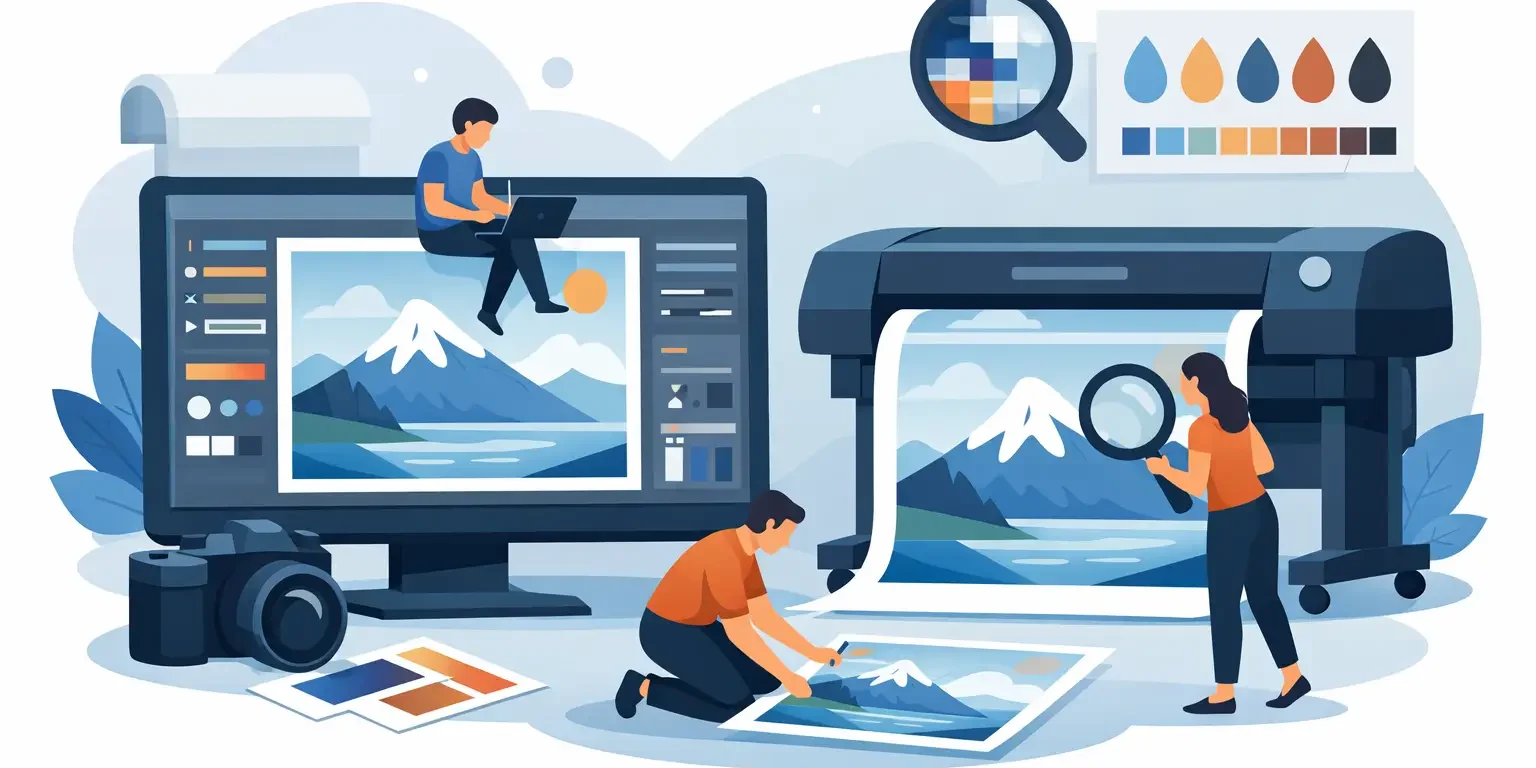
A roller banner that looks sharp on screen can turn soft, muddy or unexpectedly cropped once it reaches full size. That usually comes down to file setup, not the printer. If you are working out how to prepare images for large format printing Photoshop is one of the best tools for getting it right before anything goes to press.
Large format artwork behaves differently from standard office print. A business card is handled close up. A shop fascia, exhibition graphic or hoarding panel is usually viewed from further away, printed at much larger dimensions and often produced on materials with their own finish, texture and ink limits. That changes how you should approach image quality, document size and export settings.
How to prepare images for large format printing in Photoshop
The first thing to decide is the finished size of the graphic and how it will actually be used. A pull-up banner for an event, a wall graphic in an office, and a roadside board all need different levels of detail because people view them from different distances. This matters because many file problems begin when artwork is built at an arbitrary size and scaled up later.
In Photoshop, start by creating the document at the final print size where possible. If the file becomes impractically heavy, work at a reduced scale such as 50 per cent or 25 per cent, but keep the proportions exact and make a clear note of the scale. If you build at 25 per cent, a 5 mm bleed becomes 1.25 mm in the artwork. Small setup errors at this stage can become expensive once a panel is several metres wide.
Resolution is where many people overcomplicate things. For standard print, 300 dpi is often treated as the rule. For large format, that is not always necessary. A poster viewed at a short distance may benefit from higher resolution, while a building banner or high-level sign can print very well at a lower effective resolution because nobody is inspecting it from 20 cm away.
As a practical guide, 150 dpi at full size is often a solid target for large format display work viewed at moderate distance. For very large graphics viewed from further away, 72 to 100 dpi at full size may be perfectly suitable. The trade-off is simple: higher resolution gives you more detail, but it also creates larger files, slower processing and sometimes no visible gain once installed. If in doubt, ask your print supplier what they recommend for the specific product.
Check the actual image resolution
This is where Photoshop can save you from false confidence. An image may look crisp on a monitor yet still be too small for print. Open the image and go to Image Size. Turn off resampling if you want to see its true print capability. Photoshop will show the physical print size based on the current pixel dimensions and resolution.
For example, if your source image is only 2000 pixels wide, it will not hold sharp detail across a very wide exhibition wall unless the viewing distance is generous. Upscaling can help in some cases, particularly with newer Photoshop interpolation tools, but it cannot create genuine detail that was never there. It is far better to start with the largest, cleanest original image available.
Colour settings matter more than people think
If your artwork is built in RGB and sent straight to print without checking the conversion, colours can shift. Bright blues, greens and oranges are common problem areas because they often look more vivid on screen than they can be reproduced in ink.
For large format print, Photoshop files are generally better prepared in CMYK if your printer has specified a profile or workflow for that job. If no profile has been supplied, speak to your print partner before making assumptions. Some large format devices use extended ink sets and RIP software that handles conversion differently depending on material and machine.
The safest working approach is to keep colours consistent and avoid relying on your monitor alone. A screen is backlit. Printed vinyl, fabric, Foamex or correx is not. What looks bright and punchy on screen may print flatter, especially on uncoated or textured substrates. If brand accuracy matters, that should be addressed before production rather than after installation.
Use the right colour mode and profiles
In Photoshop, check Image > Mode and confirm whether the file should remain RGB during design or be converted to CMYK before supply. There is no single answer for every job. It depends on the print process, substrate and RIP setup. That is why a one-size-fits-all online rule can cause more harm than good.
If exact corporate colours are critical for retail, fleet or workplace branding, a proper proof or managed colour process is worth the time. It is especially important when multiple items need to match, such as window vinyls, boards and exhibition graphics produced together.
Build in bleed, safe areas and clean edges
Cropping issues are one of the easiest mistakes to avoid. If the artwork runs to the edge, it needs bleed. That gives the printer and finisher enough extra image area to trim the job cleanly without leaving hairline white edges.
For many large format products, 3 mm bleed may be enough on smaller items, but larger boards, banners and displays may need more. The right amount depends on the product and finishing method. Pole pockets, hems, eyelets, folds and panel joins also affect where important content should sit.
Keep logos, text and key visual elements inside a safe area. Just because the final size is technically correct does not mean every millimetre is equally usable. A banner stand cassette hides part of the graphic at the bottom. A wrapped panel may lose edge detail. A hoarding run may include joins between boards. These are production realities, and your artwork should allow for them.
Keep text and logos sharp
Photoshop is strong for image work, but it is not always the best place to build text-heavy designs from scratch. Raster text can soften if handled badly, especially when scaled. If you are using Photoshop, keep text layers live for as long as possible and avoid repeatedly resizing the document.
For logos, use vector originals wherever you can. If a logo only exists as a small JPEG pulled from a website, it may look poor once enlarged for signage. The same goes for icons and brand marks. Clean source files save time and give a better result.
If the artwork includes a lot of typography, wayfinding details or technical information, many designers prefer to combine Photoshop imagery with vector layout work in Illustrator or InDesign. That is often the more reliable route for complex signage and branded environments.
Export settings for print-ready files
Once the artwork is approved, flattening and exporting need care. A print-ready PDF is often preferred, but some workflows also accept high-quality TIFF or JPEG files depending on the application. The correct format depends on the job rather than a blanket rule.
Before export, check dimensions, scale, resolution, bleed and colour mode one last time. Make sure layers that need to remain editable are saved in your working file, then create a separate output file for print. Naming matters too. A clearly labelled file with version control is far easier to process than three similar files called final, final2 and final-use-this.
Compression should be handled with caution. A lightly compressed file may be fine for some graphics, but heavy JPEG compression can introduce artefacts in gradients, text edges and photographic detail. Those flaws are far more obvious when enlarged.
A practical pre-flight check in Photoshop
Before sending artwork, zoom to 100 per cent and inspect key areas such as faces, logos, text, gradients and dark backgrounds. Then zoom out and view the composition as a whole. Large format print is about both close detail and distance impact.
Also check for hidden issues such as clipped layers, stray guides, accidental transparency, incorrect background colour and linked images that were placed too small in the first place. If the job is part of a wider branded rollout, consistency across every panel matters just as much as quality on a single file.
For businesses managing signage across retail, property, office or site environments, this preparation stage is where delays are either prevented or created. Good file setup helps production move quickly, keeps quality consistent and reduces the risk of reprints.
If you need artwork to work across multiple formats, from flags and exhibition systems to boards, wall graphics and vinyl applications, it pays to speak to a production partner early. At SignsDisplay.com, that practical approach helps businesses avoid avoidable file issues before they become installation problems.
The best Photoshop setup is the one that reflects the real-world job – its size, material, viewing distance and finish – rather than a generic print rule copied from somewhere else.